
Customer or Student Reset Password from Your Platform Homepage
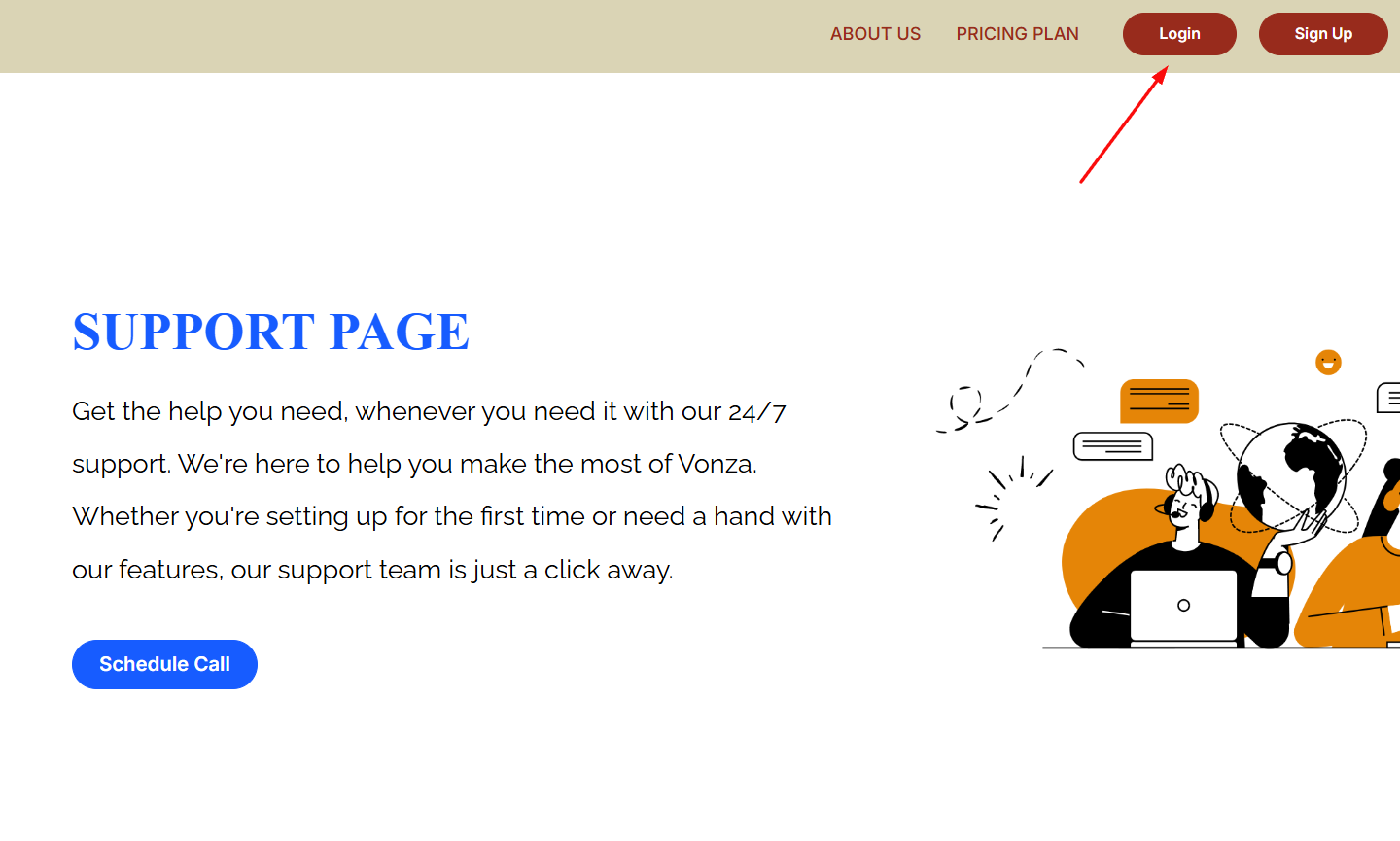
1. For a customer to reset their portal password via your platform homepage, navigate to your platform's URL (e.g. yourdomain.vonza.com or yourcustomdomain.com) and click Login in the upper right-hand corner.
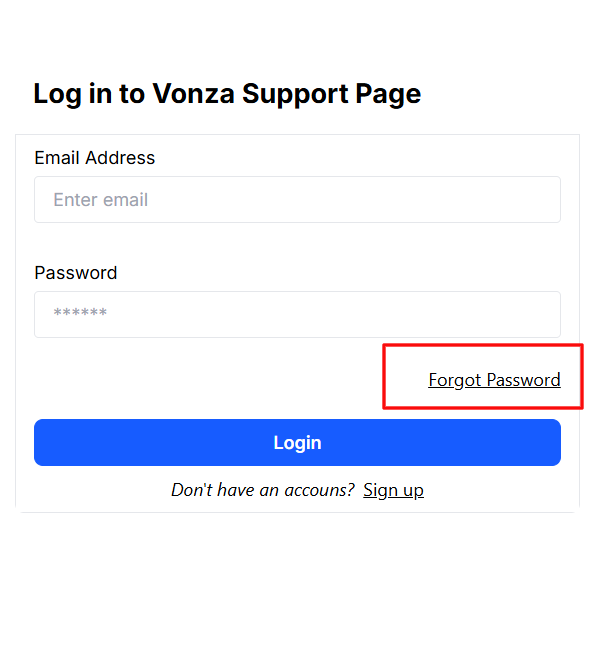
2. In the login window that appears, click Forgot password? link beneath the Login button.
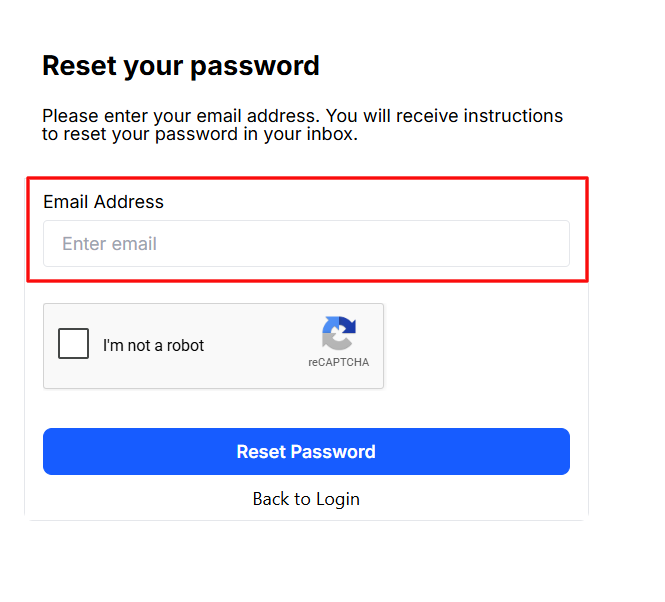
3. Then, enter the email address associated with your account and click Reset Password.
4. Customer/Student will receive an email with instructions on how to reset your password in a few minutes. If they can't find the password reset email, check your spam or junk mail folder.
5. Once they receive the email, click on the link and follow instructions to reset your new password.
6. Once they have successfully reset your password, they'll be redirected to their student/customer dashboard.